Getting Started
Download & install
Apple-notarized Mac builds of Atelier are available on the GitHub releases page.
Configure Providers & Models
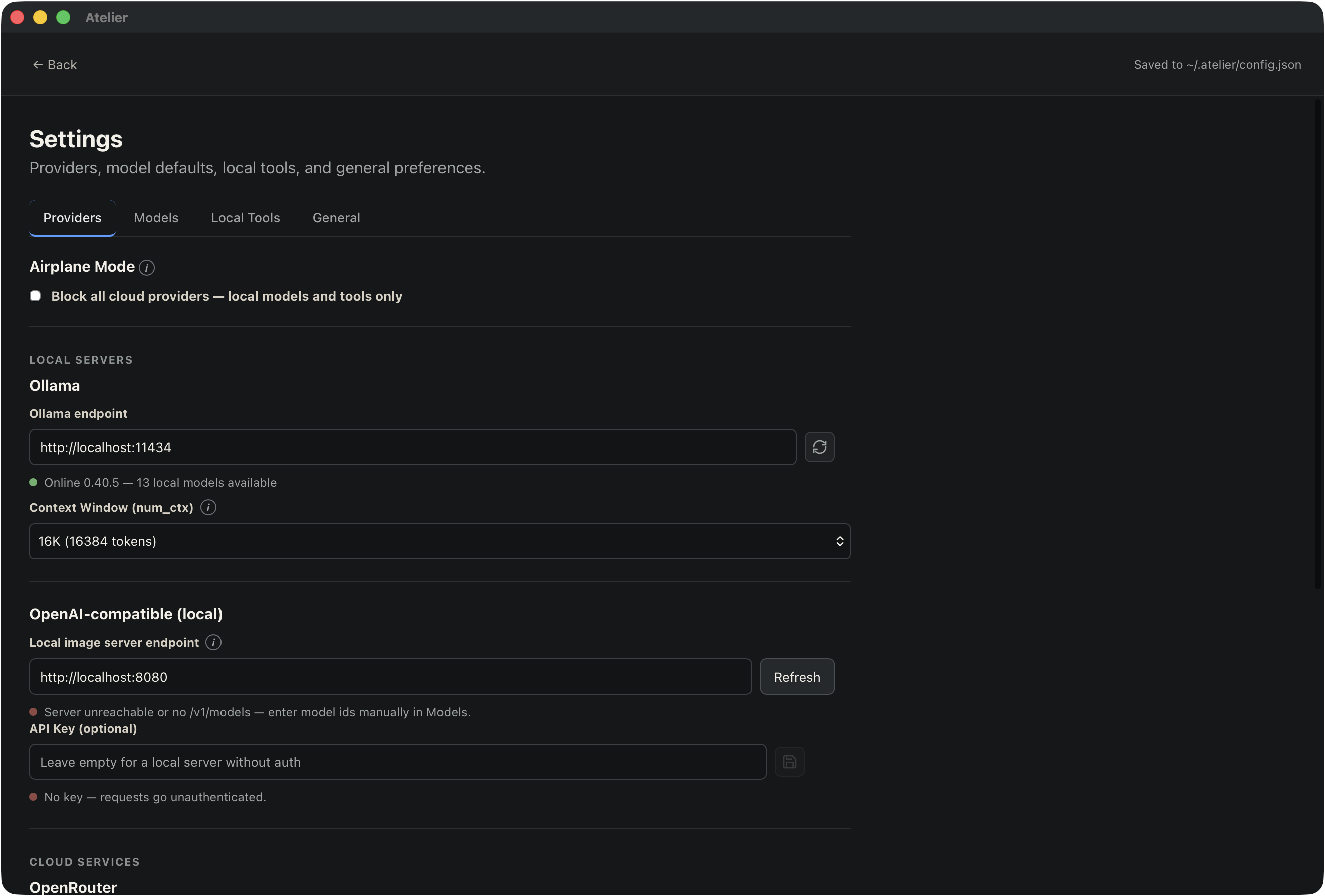
Open Settings → Providers to connect the services you want to use, then Settings → Models to choose which models handle each task. You only need to configure the providers you plan to use. Cloud API keys are stored in the macOS keychain.
Supported providers
| Provider | What you can use it for |
|---|---|
| Ollama | Local chat, harness tasks, and image generation with a suitable installed model. |
| OpenAI-compatible (local) | Chat, harness tasks, and image generation through a local server that supports the corresponding OpenAI-compatible API. Configure its endpoint; an API key is optional if the server does not require authentication. |
| OpenRouter | Cloud chat and harness models. Add your OpenRouter API key to enable it. |
| fal.ai | Cloud image, video, and audio generation, plus media tools such as transcription and lipsync. Available operations depend on the selected model. |
| Replicate | Cloud image and video generation, plus supported image and video editing tools. Audio and lipsync use fal.ai. |
Atelier also supports local tools, including Whisper for transcription and FFmpeg for audio and video editing. These are configured separately from the chat models.
Main model and harness model
The main model (called Primary in the model settings) is the model you talk to. For text conversations, it writes the answers you see. Choose a model with vision support if you want it to understand attached images.
The harness model handles the work behind the conversation: it decides whether a request needs tools, selects relevant skills, and plans tool use. Straightforward questions can go directly to an answer without a tool plan. The harness model and main model can be the same model, or they can use different models and providers.
Image, video, and audio generation have their own model selections. The chat model coordinates the request; the selected media model produces the result.
Smart defaults
Atelier starts with Ollama selected for the main model, harness model, and image generation. Its initial model choices are mistral-small3.1:latest for chat and harness tasks, and x/z-image-turbo:latest for images. You need those models installed in Ollama, or you can select alternatives you already have.
If no harness model is configured for the selected harness provider, Atelier falls back to the main model and its provider. Media settings also include default models for the different generation tasks, so you can start with those once the relevant provider is connected.
Global settings provide your usual model choices. You can override them for an individual conversation and reset an override to follow the global settings again.
Mixing local inference with cloud models
Provider choices are independent. For example, you can use:
- An Ollama main model with an OpenRouter harness model for planning.
- An OpenRouter main model with a local harness model.
- Local chat and planning with fal.ai or Replicate for image and video generation.
- Cloud chat with local Whisper transcription and FFmpeg editing.
Choose the provider and model for each role in Settings → Models. A local main model does not make the whole conversation local: a cloud harness or media provider still receives the inputs needed for its part of the request.
To work with local providers and tools only, enable Airplane mode. It blocks cloud providers; switch any cloud model selections to local alternatives before using them.
Top-right tools
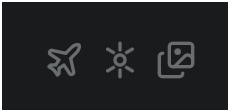
The three buttons at the top-right of the chat provide quick access to the following controls, from left to right.
Airplane mode (airplane icon)
Click to turn Airplane mode on or off. When enabled, the icon turns amber and Atelier blocks cloud providers, leaving local models and tools available. The setting is saved automatically.
Choose local alternatives for any roles currently assigned to cloud providers. Turning Airplane mode on does not automatically replace your selected models.
Conversation model overrides (sun-like icon)
Open this panel to change model selections for the current conversation. If you have not started a conversation yet, the selections apply to the next one you create.
You can override the main and harness providers and models, along with media model selections and generation settings. This lets you tailor a particular chat while keeping your usual defaults in Settings. The icon highlights when overrides are active; use a field’s reset control to follow its global setting again.
Assets panel (stacked pictures icon)
Click to show or hide the assets panel. It collects attached, generated, and converted content, including images, audio, video, subtitles, Markdown documents, and composition projects. In a library chat, it shows assets from across that library’s conversations.
Use the panel to preview images, play audio or video, download files, and open supported assets in their editors. The @ button on an asset inserts a reference into your message, so you can ask Atelier to use it in a follow-up request. Composition projects open in the composer and cannot be referenced with @.
Library & Project Structure
Atelier organizes related work into libraries, projects, and chats. You can also keep standalone conversations in the sidebar’s Chats section.
| Level | Purpose | Example |
|---|---|---|
| Library | Groups related projects and provides a shared view of their assets. | A short film |
| Project | Groups conversations for a particular part of the work, with optional standing instructions. | Character design, storyboards, or soundtrack |
| Chat | Holds an individual conversation and its attached and generated content. | Exploring the lead character’s appearance |
Create and organize your work
- Click + beside Libraries in the sidebar and name your library.
- Click + beside the library to create a project inside it.
- Click + beside the project to start a chat in that project.
Expand a library to see its projects, and expand a project to see its chats. The chat toolbar shows the library and project names so you can see where you are working. Use a library or project’s actions menu to rename it.
You can organize existing conversations too: open a chat’s actions menu, choose Move to…, and select a project. Choose Standalone to return it to the Chats section.
Give a project standing instructions
Choose Notes… from a project’s actions menu to add guidance for its chats. For example:
Create videos in a 9:16 aspect ratio with a consistent watercolor animation style.
Atelier uses these notes when planning work for conversations in that project. An explicit instruction in your message takes precedence. Changes to the notes apply from the next message, including in existing chats; moving a chat to another project makes it follow the destination project’s notes.
Reuse assets across a library
When you open the assets panel in a library chat, it shows uploads and generated media from all chats in that library, including other projects. This lets you reuse a character image from a design chat in a storyboard or video chat. Use an asset’s @ button to reference it in your message.
The shared asset view gives you access to the library’s media; reference the assets you want Atelier to use in the current request.
Export and import a library
Choose Export… from a library’s actions menu to save its projects, conversations, and available uploaded and generated assets as an .atelierlib archive. Use Import library archive beside the Libraries heading to bring an archive into Atelier.
Deleting a project removes its chats and assets. Deleting a library removes its projects and their contents, so export a copy first if you want to keep the work.
HITL
The human element is essential to avoiding AI slop. Models can produce a draft quickly, but your judgment gives the work purpose, taste, and a point of view. Review what they make, question the choices, correct mistakes, and refine the details before calling it finished.
Explore the editors with the arrows or swipe. Select a screenshot to open it full size.
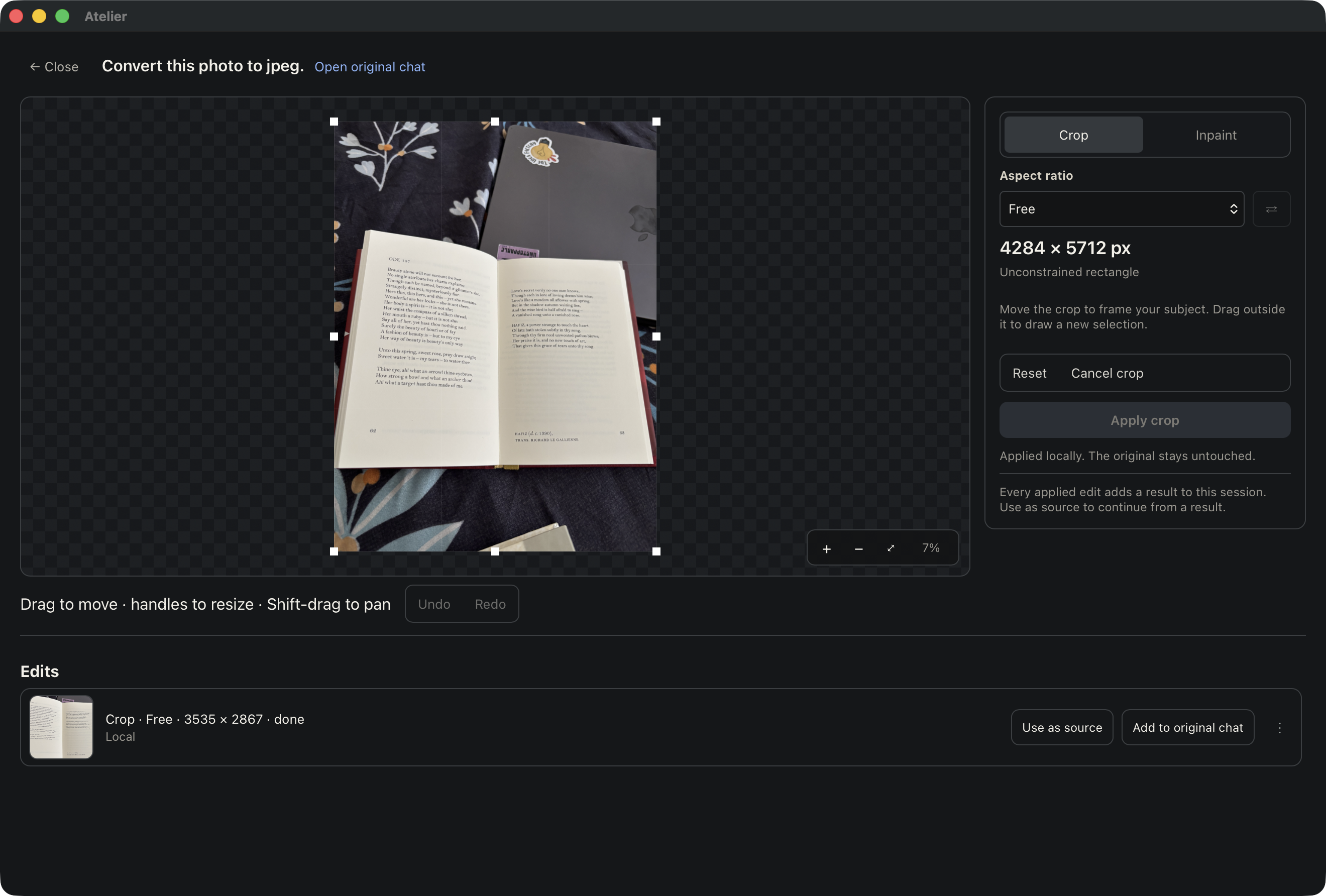
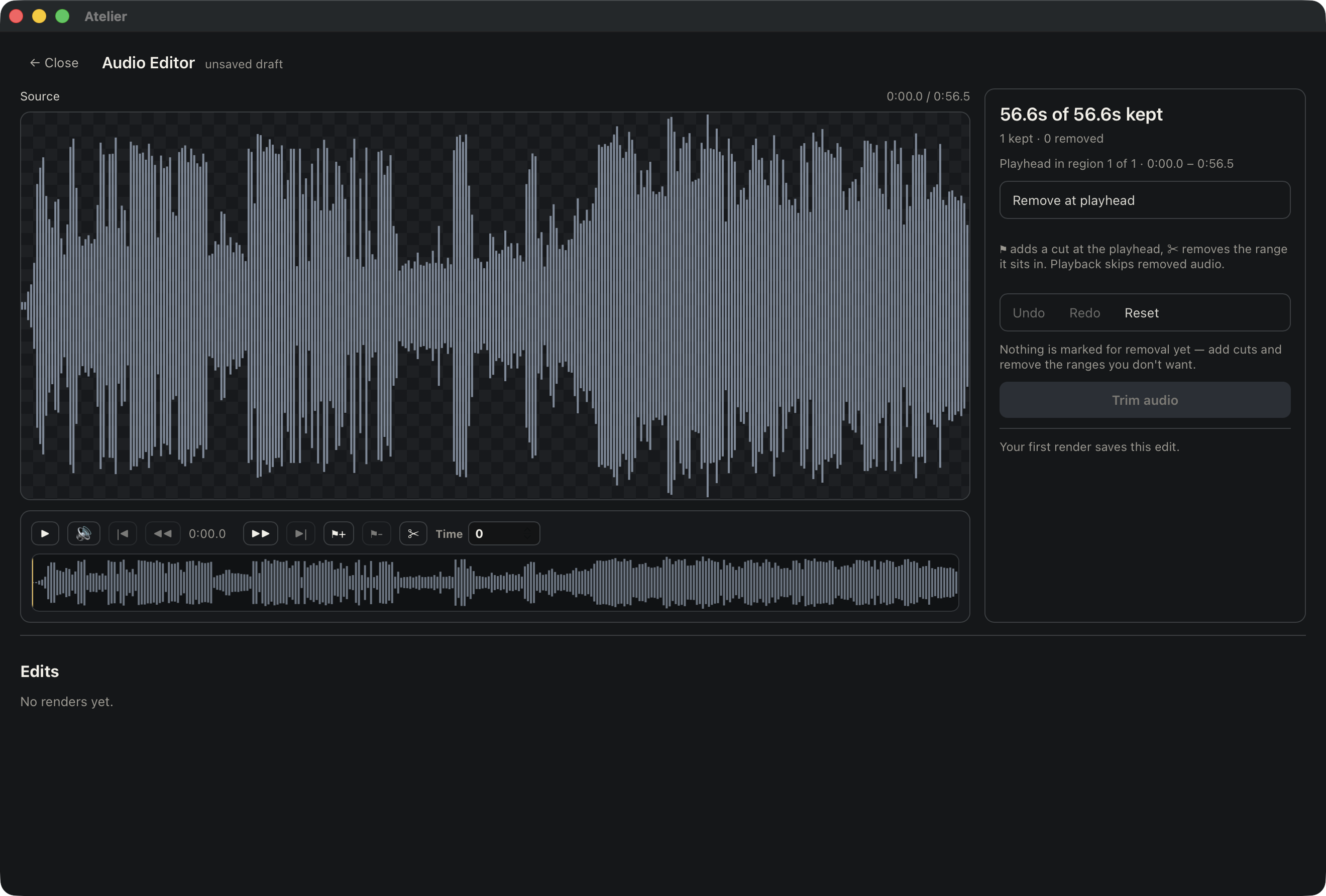
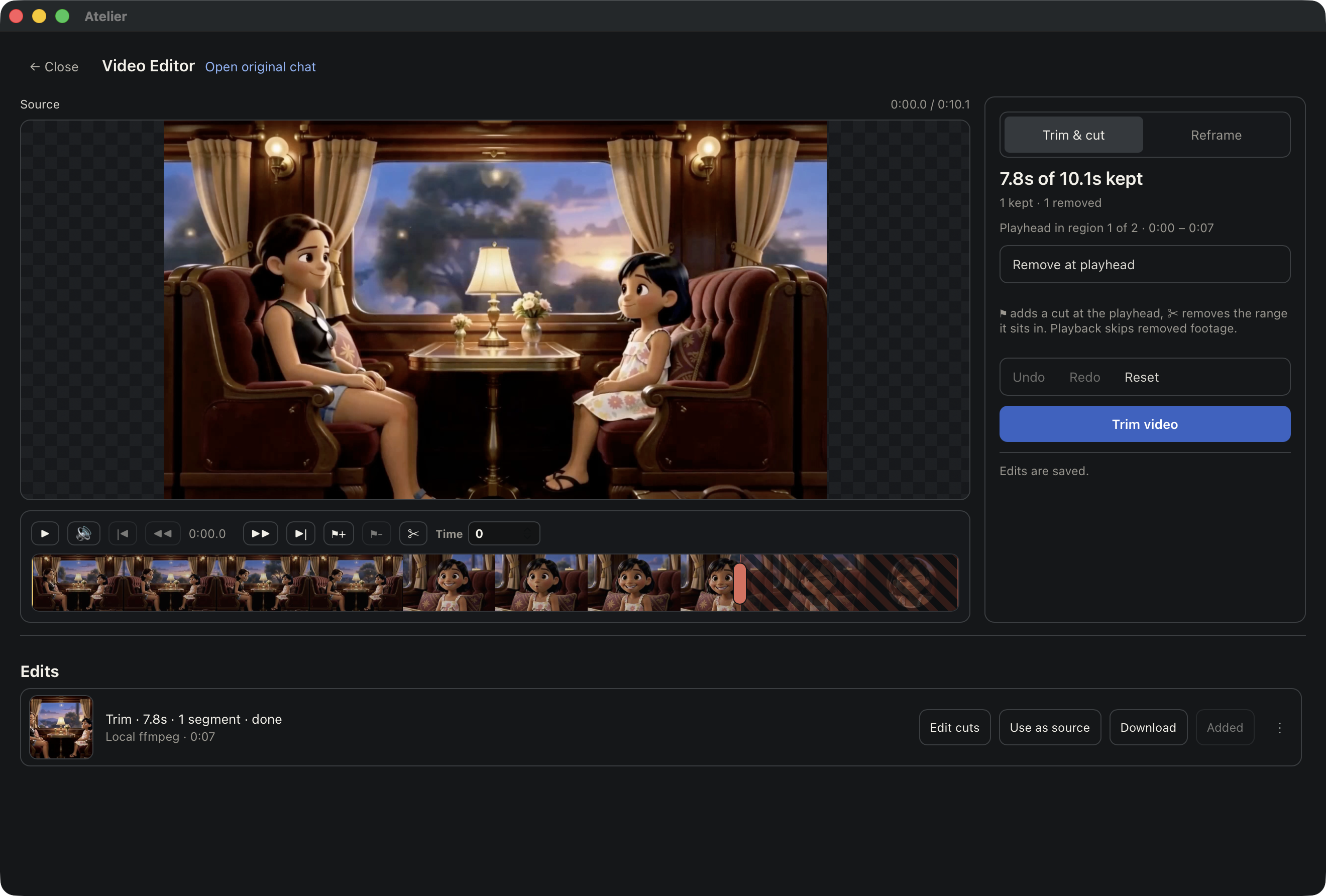
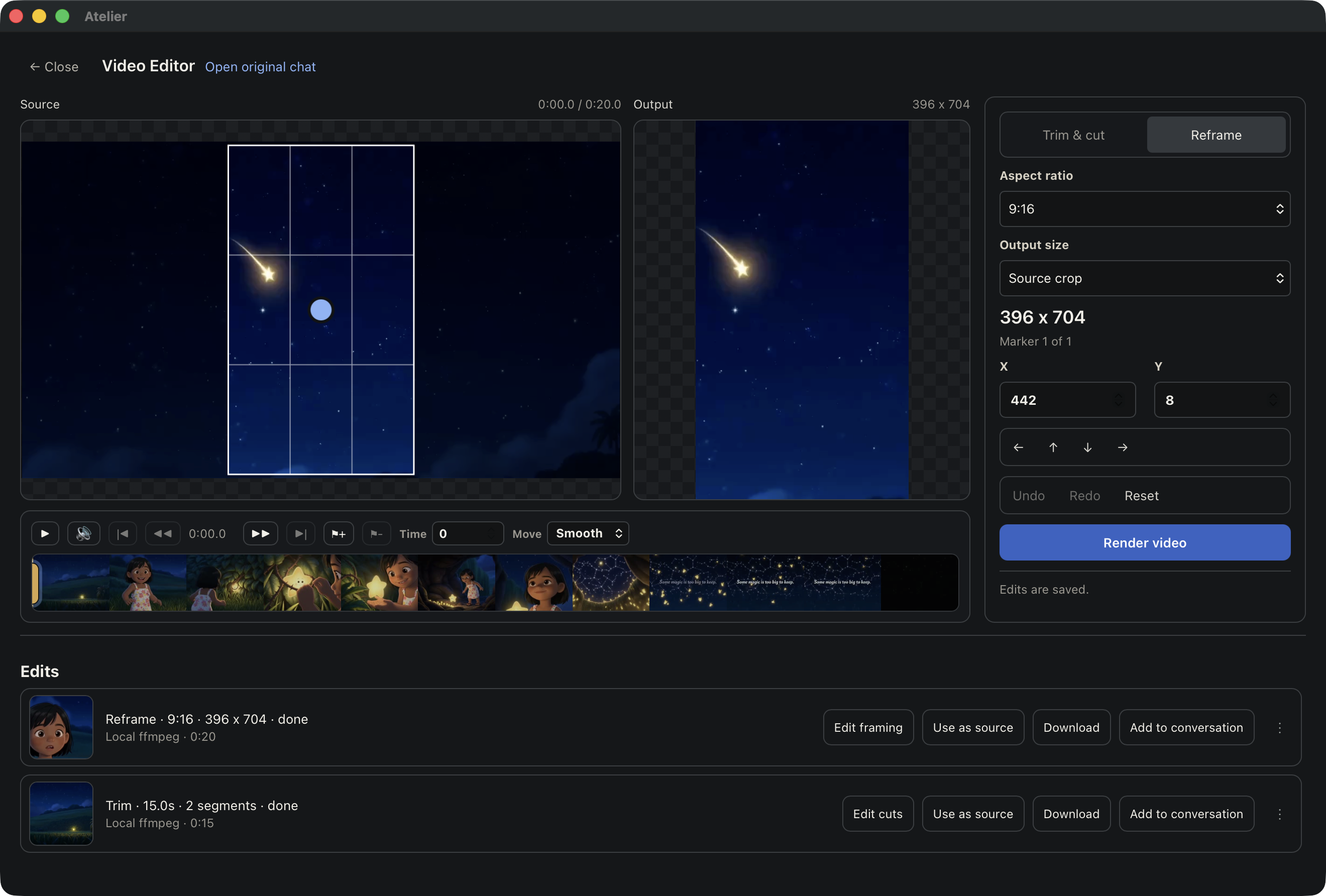
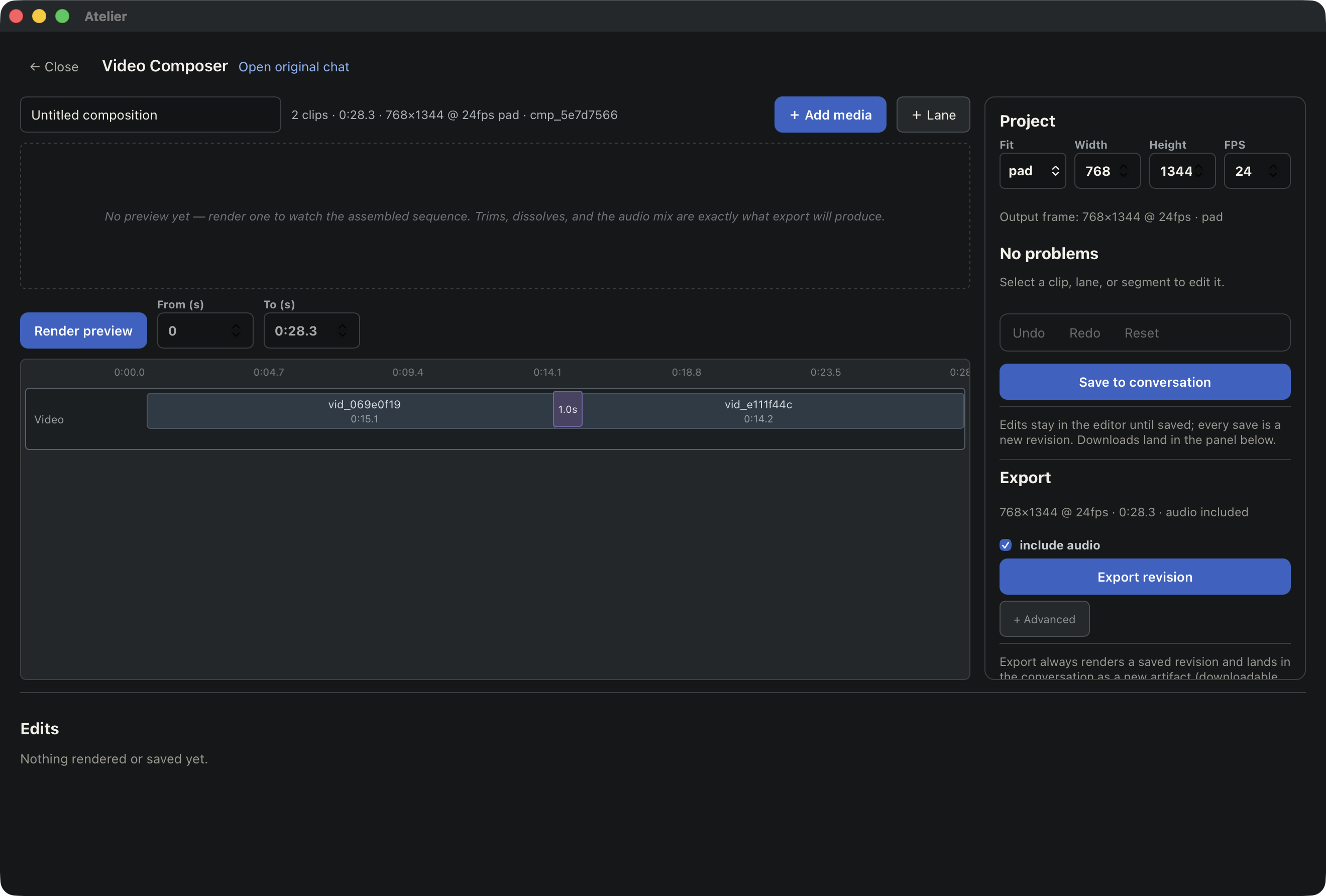
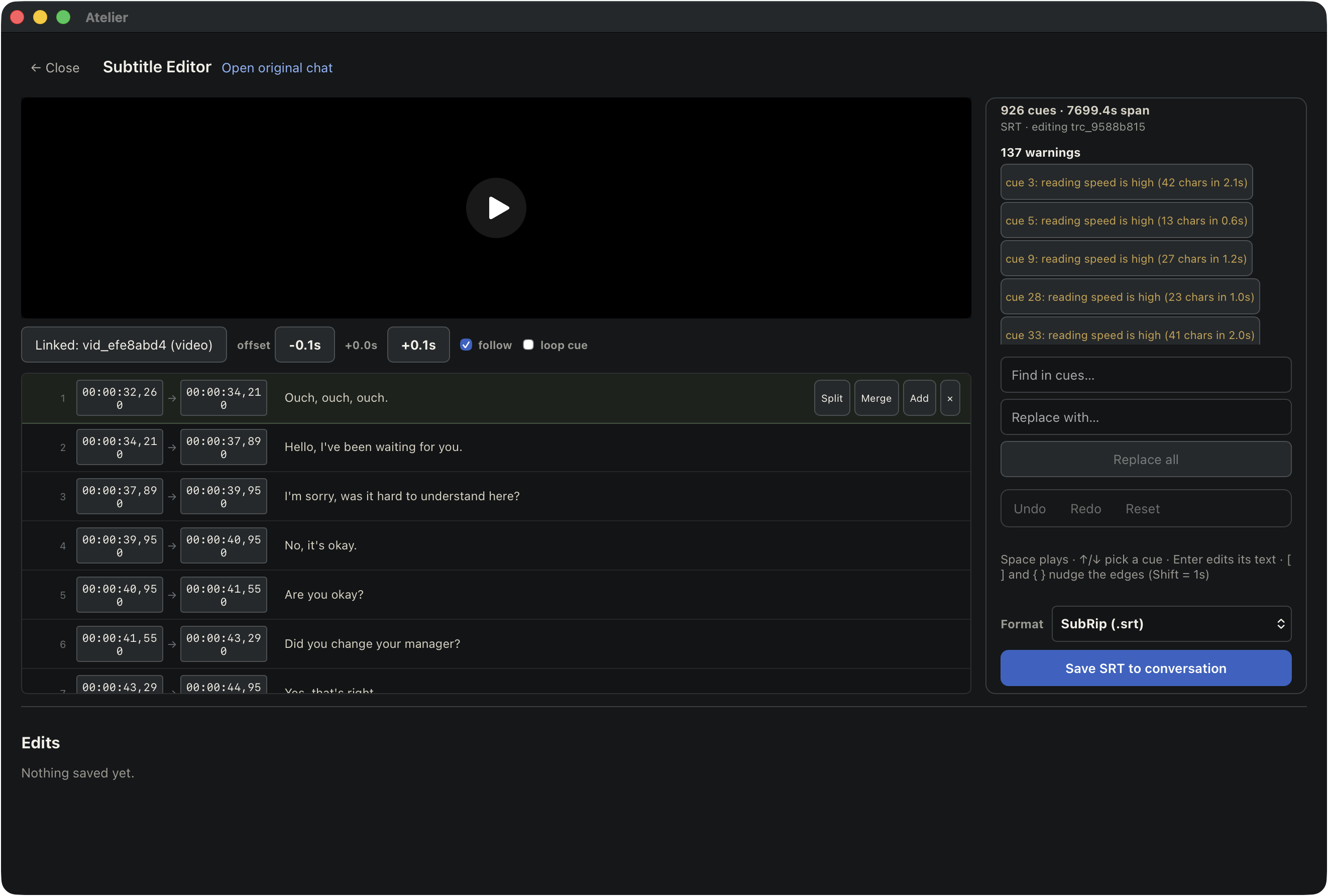
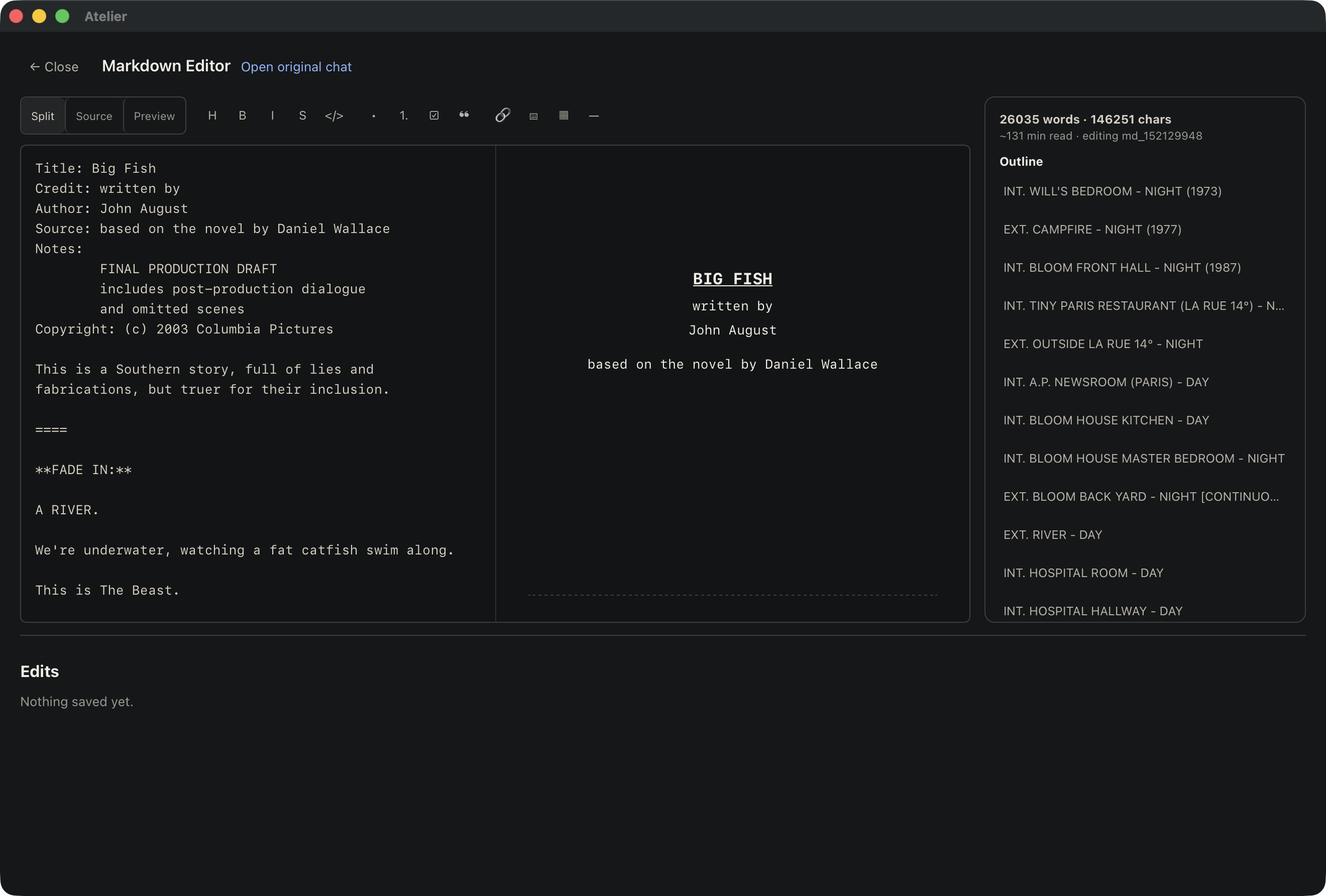
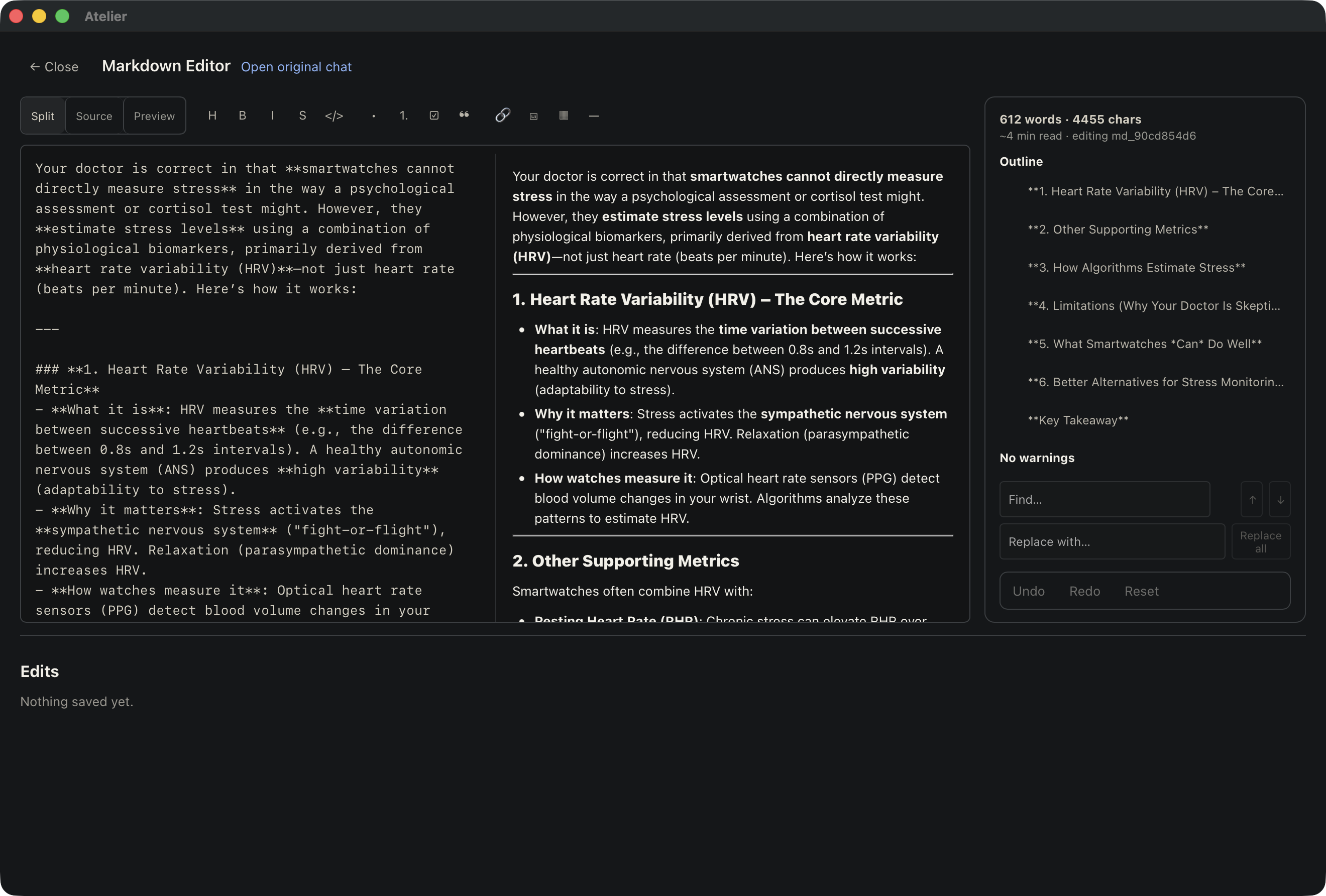
HITL means human in the loop. Atelier keeps you involved beyond the prompt with built-in editors that let you work directly on the results:
- Image editor — refine images, including targeted AI edits using a mask.
- Audio editor — listen to and trim audio.
- Video editor — review and edit individual clips.
- Video composer — arrange video and audio clips into a composition.
- Subtitle editor — correct subtitle text and timing.
- Screenplay editor — write and revise scripts in Fountain format with a formatted preview.
- Markdown editor — edit documents and review the rendered text.
Open supported assets in their editors from the assets panel. Move between asking Atelier for help and making your own changes: generate a starting point, inspect it, edit what matters, and repeat until it expresses what you intended. You decide when the work is ready.
Use!
You now know everything you need to get started with Atelier. Open a chat, bring an idea, and give it a try—ask a question, create an image, or start your first project. You can explore the rest as you go. Your workshop is ready!